
Integration availability can depend on your Looksy environment. Continue only when Klaviyo appears as an interactive card under Integrations. If it is absent or marked unavailable, contact Looksy support.
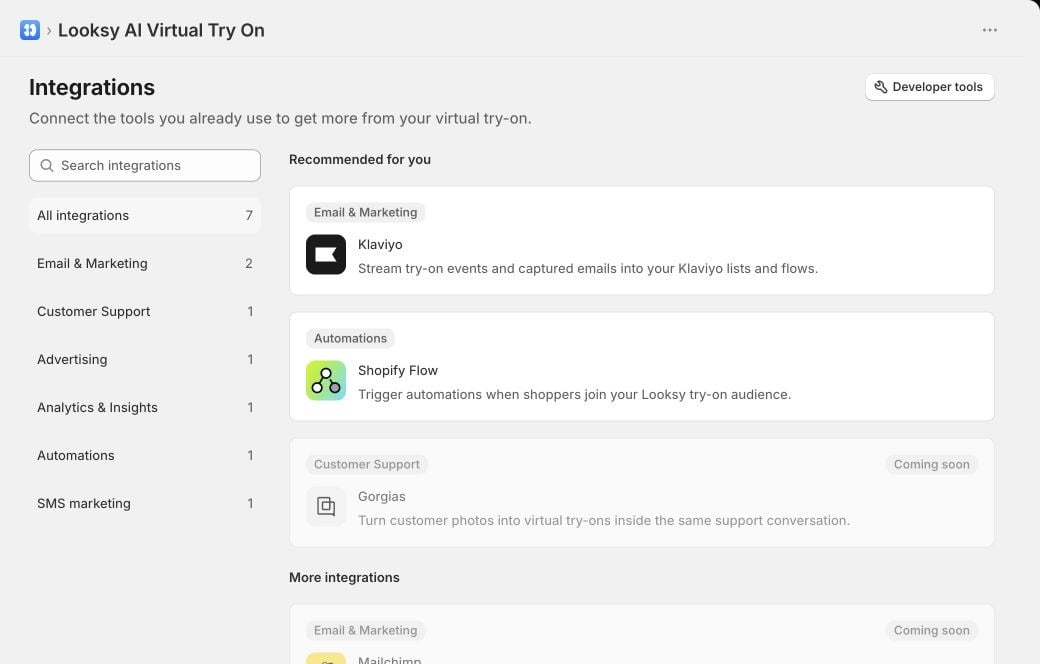
Klaviyo and Shopify Flow are available integration cards, while Gorgias is clearly marked Coming soon. This example uses a Looksy test store.
Connect Klaviyo
- In Shopify Admin, open Looksy.
- Select Integrations, then choose Klaviyo.
- Select Connect.
- Review and approve the requested access in Klaviyo.
- Return to Looksy and confirm that the status is Connected.
- Choose the merchant-owned Klaviyo list that should receive captured emails.
- Select Save.
Configure email capture
The selected Klaviyo list controls where consented addresses are added. The timing of Looksy’s shopper email prompt is managed separately:- In Looksy, open Settings.
- Open Photo & Video.
- Configure photo or Live Video email capture and save.
Events sent to Klaviyo
Shopify’s Klaviyo app sends
Placed Order separately; Looksy does not replace that event.
Looksy does not send raw shopper uploads, raw body measurements, names, postal addresses, or phone numbers as these event properties. Size-recommendation events contain the recommended size and confidence rather than the shopper’s measurements.
Remove the integration
- Open Looksy → Integrations → Klaviyo.
- Select More actions.
- Select Remove integration.
- Confirm Remove Klaviyo.
Troubleshooting
Klaviyo asks for updated permissions
Klaviyo asks for updated permissions
Select Reconnect on the Klaviyo integration page. Looksy can keep email capture available while event delivery waits for the required event permission.
The integration cannot be configured
The integration cannot be configured
If Looksy reports that Klaviyo is not configured for the current environment, contact Looksy support. Do not send OAuth credentials by email.