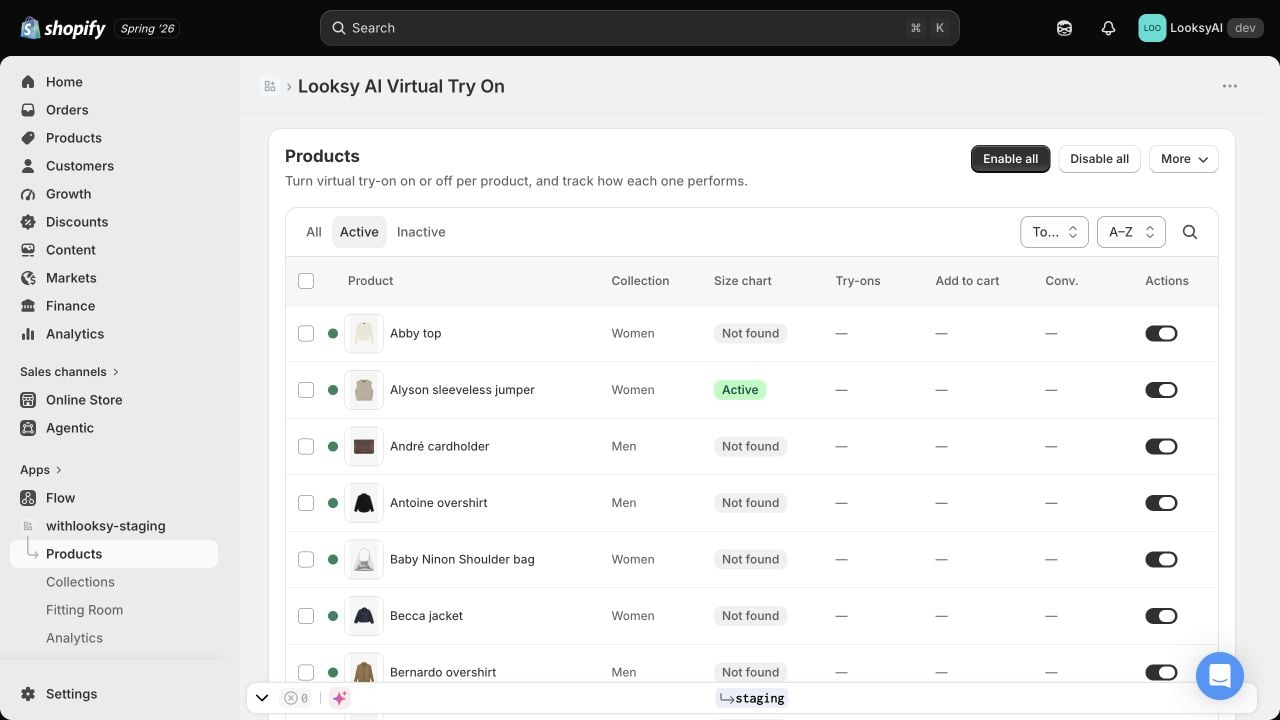
Product Management
Looksy auto-enables all products by default. You don’t need to manually enable anything—the app works on all product pages immediately after you enable the app embed.This is a zero-configuration approach. Install the app, enable the embed, and virtual try-on works on all products.
When to Disable Products
Most stores can leave all products enabled. Disable products only if:- Revealing garments – Lingerie, swimwear, and very revealing clothing may fail to generate results (protection against misuse)
- Poor image quality – Products with very low-quality images produce poor results
- Non-fashion items – Products where visualization doesn’t add value
How to Disable Specific Products
Go to Products in your Looksy admin:- Find the product you want to disable
- Toggle it off
- Save changes
Select Specific Products Only
If you prefer to enable try-on on only certain products:- Go to Products in your Looksy admin
- Click Disable All
- Enable only the products you want
- Save changes
What Works with Looksy
Looksy works on all product types:- Apparel – Tops, dresses, outerwear, activewear
- Accessories – Jewelry, bags, scarves
- Footwear – Shoes, boots, sneakers
- Any fashion item – The AI adapts to any product
The model delivers realistic results across all categories. Better product images produce better try-on results.
Which Products Benefit Most
Focus virtual try-on on products where customers struggle with visualization:High-Impact Categories
- Items with unique cuts or styles
- Products customers haven’t seen on real people
- New releases or seasonal collections
- Products with above-average return rates (style-related, not sizing)
Style vs. Sizing
Important: Looksy helps customers visualize style (how it looks on them), not sizing (whether it will fit). Always provide size charts and fit descriptions alongside virtual try-on.
Product Selection Strategy
Two Approaches: All Products vs. Selective Enablement
Approach 1: Enable Everything (Recommended)- Fastest setup: Works on all products immediately
- Let customers decide where it’s valuable
- Disable only problematic products (revealing items)
- Monitor analytics to see what works
- Test with top 5-10 products first
- Validate results and engagement
- Expand based on data
- Good for risk-averse merchants
How to Choose Your First Products (Approach 2)
If you prefer to test with a limited set first, follow this framework:Framework: Start with 5 Bestsellers
Step 1: Identify Your Top 5 Products by Sales Volume Use Shopify analytics to find your bestsellers:- Go to Analytics → Reports → Sales by product
- Look at last 30-60 days
- Identify top 5 products by revenue or units sold
- Prioritize products with:
- High traffic (product page views)
- Good product images (clear, multiple angles)
- Above-average return rates (style-related)
- Highest traffic = most customers will see the feature
- Proven demand = conversion lift has bigger revenue impact
- Existing data = easier to measure results
Testing on your top products ensures maximum visibility and measurable impact from day one.
Step 2: Test for 1 Week Enable virtual try-on on your top 5 products and monitor: Key metrics to track:
- Try-on engagement rate: Target 15-25% (customers who click “Try On”)
- Credit usage: How many credits per day?
- Customer feedback: Any comments or support tickets?
- Early conversion data: Are try-on users buying?
- 15-25% engagement rate
- 10-20 try-ons per day (varies by traffic)
- Positive or neutral customer feedback
- No technical issues
- < 10% engagement rate
- Very few try-ons despite high traffic
- Complaints about button placement or quality
- Technical errors
Step 3: Expand Based on Data After 1 week, decide next steps based on results: If engagement > 20%: Expand Aggressively
- Enable 10-20 more products immediately
- Focus on similar categories (if top products are dresses, add more dresses)
- Or enable all products (fastest path to full rollout)
- Add multiple product angles (up to 4 images per product)
- Test different button text or colors
- Enable 5-10 more products in high-performing categories
- Monitor for another week
- Check product image quality
- Verify button is visible (not hidden or too small)
- Test on mobile (70%+ of traffic is mobile)
- Consider better promotion (homepage banner, email)
- Enable 2-3 more products to see if issue is product-specific
Category Priority Matrix
Not all product categories perform equally. Focus on categories with highest potential impact:| Category | Engagement Potential | Setup Ease | Return Rate Impact | Priority |
|---|---|---|---|---|
| Dresses | High (25-35%) | Easy | High (30%+ reduction) | 1 |
| Tops & Blouses | High (20-30%) | Easy | Medium-High (20-25% reduction) | 1 |
| Outerwear | Medium-High (18-25%) | Easy | Medium (15-20% reduction) | 2 |
| Activewear | High (22-30%) | Easy | Medium-High (20-25% reduction) | 1 |
| T-Shirts | Medium (15-20%) | Easy | Medium (15-20% reduction) | 2 |
| Hoodies & Sweatshirts | Medium (15-22%) | Easy | Medium (15-20% reduction) | 2 |
| Jackets | Medium-High (20-25%) | Easy | Medium (18-22% reduction) | 2 |
| Casual Shirts | Medium (18-22%) | Easy | Medium (15-20% reduction) | 2 |
| Accessories | Low-Medium (10-15%) | Medium | Low (5-10% reduction) | 3 |
| Jewelry | Low-Medium (8-15%) | Medium | Low (5-10% reduction) | 3 |
| Footwear | Low-Medium (10-18%) | Medium | Low-Medium (10-15% reduction) | 3 |
These are averages across Looksy merchants. Your results may vary based on your product photos, traffic, and customer base.
Expansion Timeline Example
Week 1: Test Phase- Enable top 5 bestsellers
- Monitor engagement and usage
- Gather feedback
- If results are good (> 15% engagement): Enable 10 more products in Priority 1 categories
- If results are mixed (10-15% engagement): Optimize images, enable 5 more products
- If results are poor (< 10%): Investigate issues, hold on expansion
- Enable all Priority 1 products (dresses, tops, activewear)
- Add Priority 2 products (outerwear, jackets, casual shirts)
- Consider enabling all products if performance is strong
- Enable all products (or all except revealing items)
- Focus on optimization (better images, promotion)
- Use analytics to identify top performers
Data-Driven Decision Making
Use analytics to guide expansion:-
Check engagement by product:
- Looksy Dashboard → Analytics → Top Products
- Which products have highest try-on rates?
- Enable more products in those categories
-
Monitor credit usage:
- Looksy Dashboard → Analytics → Credits
- How many try-ons per day?
- Is usage growing or plateauing?
-
Track conversion impact:
- Compare conversion rates: products with try-on vs. without
- Focus expansion on categories with highest lift
-
Identify low performers:
- Products with < 5% engagement after 2 weeks
- Consider disabling or improving product images
- Or leave enabled (no downside, costs nothing)
Data beats guessing. Let customer behavior guide which products to prioritize.
Disable Revealing Products
If you sell revealing garments:- Go to Products in admin
- Find lingerie, swimwear, or very revealing items
- Disable them individually
- This prevents generation failures due to misuse protection
- AI model has safeguards against misuse
- Very revealing garments may fail to generate
- Better to disable than have customers see errors
Testing Your Products
After enabling try-on:- Visit product pages on your live store
- Click “Try On” and test with your own photo
- Check that results look realistic
- Verify the button appears where expected
Optimizing by Category
Track Performance
Use your analytics dashboard to see:- Which products get the most try-ons
- Which categories drive the most engagement
- Conversion rates by product type
Scale Based on Data
- Focus promotion on high-engagement categories
- Add new products to collections that perform well
- Consider disabling products with very low engagement (if any)
Product Image Guidelines
Better images = better results. Optimize your product photos:What Helps
- Higher resolution helps – More detail for the AI (but not required)
- Multiple angles – Up to 4 images per product for better context
- Detail shots – Close-ups of texture and material
- Any background works – Plain, complex, or busy backgrounds all work
What the AI Needs
The model works with any images. What helps accuracy:- Multiple angles (max 4 images)
- Detail shots showing texture
- Clear visibility of unique features
There are no strict requirements. Poor images work but produce lower-quality results. Input quality = output quality.
Common Questions
Does it work on accessories and jewelry?
Yes. Looksy works on all fashion products including accessories, jewelry, and footwear.
Does it help with sizing?
No. Looksy shows customers how products look (style), not whether they’ll fit (sizing). Always provide size charts alongside virtual try-on.
Do I need to test each product?
No. The app works on all products. You’re only testing that the button appears and the user experience is smooth.
What if I only sell a few product types?
Enable try-on on everything and let customers use it where they find it valuable. They’ll naturally use it on products where visualization helps.
Should I disable products with complex patterns?
No. The model handles all patterns, textures, and styles. Only disable revealing products if needed.