> ## Documentation Index
> Fetch the complete documentation index at: https://withlooksy.com/docs/llms.txt
> Use this file to discover all available pages before exploring further.
# Set Up Complete the Look
> Show a dismissible related-product rail after a successful photo try-on using eligible products from the same Shopify collection.
Complete the Look can show up to three related products after a shopper completes a successful **photo try-on** on a product page.
Complete the Look is currently attached to generated photo results. It is not shown after a Live Video session and is separate from the recommendation and offer tools in the Virtual Fitting Room.
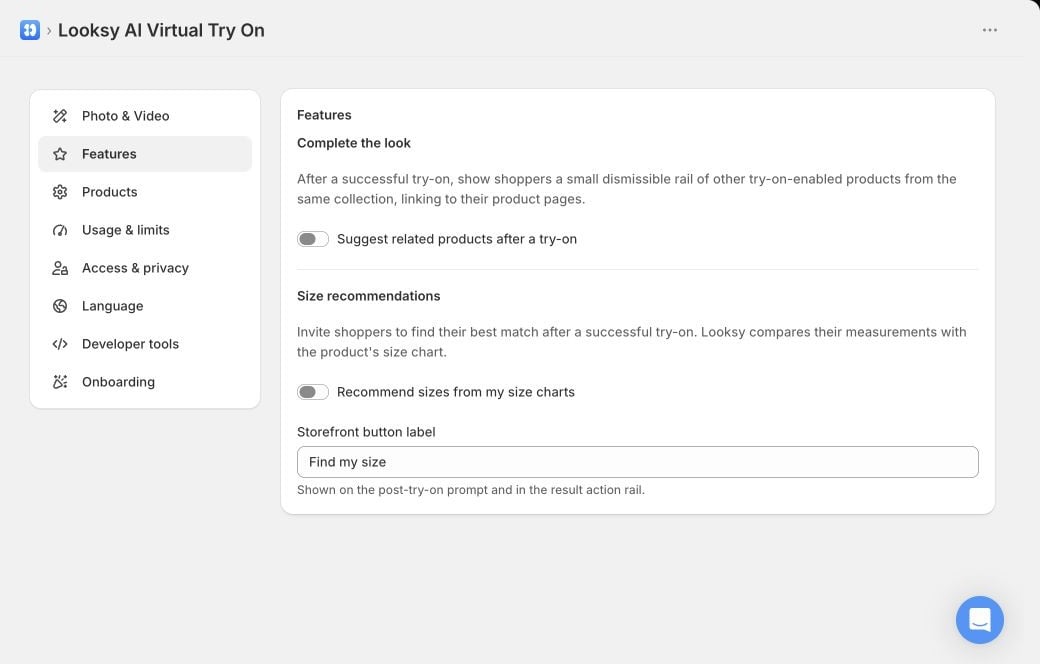 ## Turn on Complete the Look
1. In **Shopify Admin**, open **Looksy**.
2. Select **Settings**, then **Features**.
3. Turn on **Suggest related products after a try-on**.
4. Select **Save**.
5. Complete a photo try-on on a representative product page and verify the related-product rail.
There is no separate product list to maintain for this feature. Looksy selects eligible products from collections shared with the product being tried on.
## Which products can appear?
A related product must:
* share a Shopify collection with the current product;
* be active and published;
* have Try On enabled;
* have a featured image;
* be different from the current product.
If no eligible related product is found, no rail appears.
## What shoppers see
After the generated photo result appears, Looksy adds a small dismissible rail to the product media area. Each card can show the product image, title, and price, and links to that product's page.
The rail does not add an item to the cart, change the try-on result, or affect whether generation succeeds. If the shopper dismisses it, it stays closed for the rest of that page view.
## Test before rollout
1. Choose products that share a real merchandising collection.
2. Confirm that each related product is published and has Try On enabled.
3. Generate a new photo result on desktop and mobile.
4. Verify that every card opens the correct product page.
5. Check that the rail does not cover important garment details or theme controls.
6. Test a product with no eligible related items and confirm that no empty rail appears.
Build a representative set of Try On products.
Verify Looksy against your current product templates.
## Turn on Complete the Look
1. In **Shopify Admin**, open **Looksy**.
2. Select **Settings**, then **Features**.
3. Turn on **Suggest related products after a try-on**.
4. Select **Save**.
5. Complete a photo try-on on a representative product page and verify the related-product rail.
There is no separate product list to maintain for this feature. Looksy selects eligible products from collections shared with the product being tried on.
## Which products can appear?
A related product must:
* share a Shopify collection with the current product;
* be active and published;
* have Try On enabled;
* have a featured image;
* be different from the current product.
If no eligible related product is found, no rail appears.
## What shoppers see
After the generated photo result appears, Looksy adds a small dismissible rail to the product media area. Each card can show the product image, title, and price, and links to that product's page.
The rail does not add an item to the cart, change the try-on result, or affect whether generation succeeds. If the shopper dismisses it, it stays closed for the rest of that page view.
## Test before rollout
1. Choose products that share a real merchandising collection.
2. Confirm that each related product is published and has Try On enabled.
3. Generate a new photo result on desktop and mobile.
4. Verify that every card opens the correct product page.
5. Check that the rail does not cover important garment details or theme controls.
6. Test a product with no eligible related items and confirm that no empty rail appears.
Build a representative set of Try On products.
Verify Looksy against your current product templates.