> ## Documentation Index
> Fetch the complete documentation index at: https://withlooksy.com/docs/llms.txt
> Use this file to discover all available pages before exploring further.
# Usage and Access Controls
> Set the try-on safety limit, daily shopper limit, login requirement, and optional merchant-email preference.
## Which controls can limit shopper try-ons?
Looksy provides three separate merchant controls:
* a maximum number of successful try-ons for the current billing period;
* a daily limit for each anonymous shopper; and
* an option to allow only logged-in Shopify customers.
Open **Looksy → Settings** to manage them.
 ## Set a billing-period safety limit
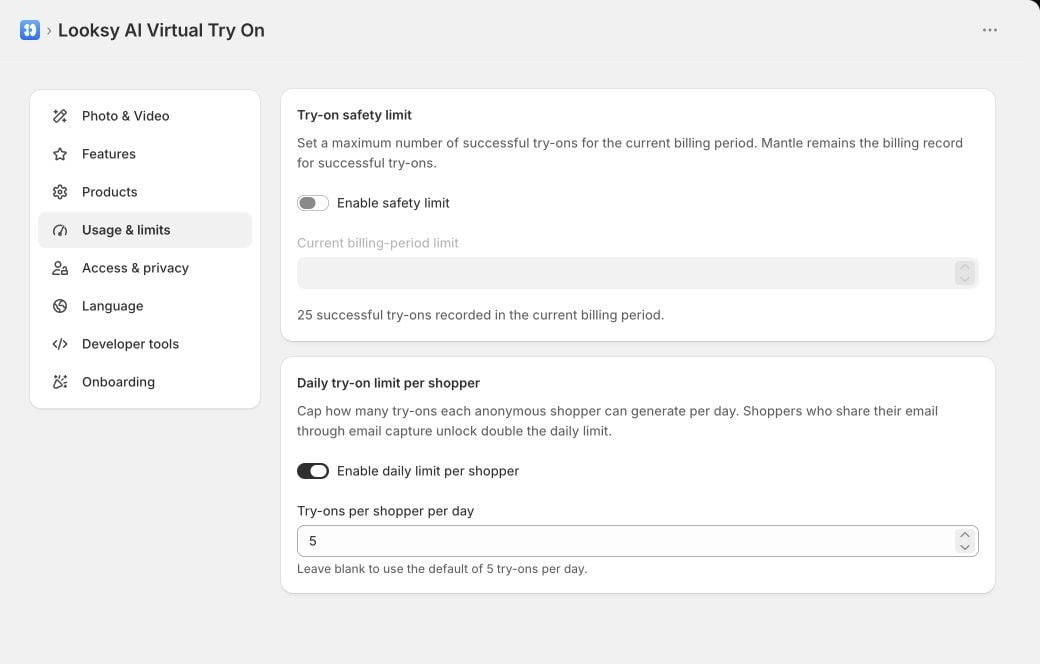
Under **Usage & limits**, turn on **Try-on safety limit** and enter the maximum number of successful try-ons you want to allow in the current billing period.
When the limit is reached, Looksy stops generating new storefront try-ons until you raise or turn off the limit, or the next billing period begins. This merchant setting does not replace Shopify's subscription terms or Looksy's billing record.
If the safety limit is enabled and Looksy cannot confirm current billing-period usage, storefront generation pauses until usage can be checked. Use **Retry usage check** before changing the limit solely to clear that warning.
## Set a daily anonymous-shopper limit
Turn on **Daily limit per shopper** and enter the allowed number of try-ons per anonymous shopper per day. Leaving the value blank uses the current default of five.
Shoppers who share their email through Looksy's email-capture flow receive twice the configured daily allowance. Turning the daily limit off permits additional anonymous attempts until another account or billing-period limit stops generation.
The daily control is an abuse and usage guardrail. It is separate from the credits included with your plan.
## Require customer login
Under **Access & privacy**, enable **Logged-in customers only** when only authenticated Shopify customers should use virtual try-on. Anonymous shoppers then see a login prompt instead of the upload flow.
Test your store's login and return path after enabling this setting, especially when the theme or customer-account experience is customized.
## Manage emails sent to the merchant
Under **Access & privacy**, use **Receive lifecycle and product emails** to manage optional messages sent to the store's Shopify contact. These are merchant emails, not shopper email-capture messages.
The optional email series can include onboarding guidance, product updates, plan or upgrade offers, up to one email per day for 14 days, and occasional win-back messages. The settings page shows the current recipient when Shopify makes it available.
Only enable the setting when you are authorized to manage email preferences for that store contact. Turning it off unsubscribes the optional lifecycle and product email series, but it does not stop essential service messages about the account, billing, security, or legal changes.
After unsubscribing, wait one hour before trying to re-enable lifecycle and product emails. Shopper email capture is configured separately under **Photo & Video** and through the [Klaviyo integration](https://withlooksy.com/docs/integration/klaviyo).
## Related feature controls
The **Photo & Video** settings let you control photo try-on, live video, and their associated email-capture prompts. Looksy keeps at least one try-on mode available. See [Live Video Try-On](https://withlooksy.com/docs/shopper-features/live-video-try-on) before changing video session length because video usage is credit-sensitive.
Compare plan allowances with merchant-controlled limits.
Configure the email integration used for shopper capture and events.
## Set a billing-period safety limit
Under **Usage & limits**, turn on **Try-on safety limit** and enter the maximum number of successful try-ons you want to allow in the current billing period.
When the limit is reached, Looksy stops generating new storefront try-ons until you raise or turn off the limit, or the next billing period begins. This merchant setting does not replace Shopify's subscription terms or Looksy's billing record.
If the safety limit is enabled and Looksy cannot confirm current billing-period usage, storefront generation pauses until usage can be checked. Use **Retry usage check** before changing the limit solely to clear that warning.
## Set a daily anonymous-shopper limit
Turn on **Daily limit per shopper** and enter the allowed number of try-ons per anonymous shopper per day. Leaving the value blank uses the current default of five.
Shoppers who share their email through Looksy's email-capture flow receive twice the configured daily allowance. Turning the daily limit off permits additional anonymous attempts until another account or billing-period limit stops generation.
The daily control is an abuse and usage guardrail. It is separate from the credits included with your plan.
## Require customer login
Under **Access & privacy**, enable **Logged-in customers only** when only authenticated Shopify customers should use virtual try-on. Anonymous shoppers then see a login prompt instead of the upload flow.
Test your store's login and return path after enabling this setting, especially when the theme or customer-account experience is customized.
## Manage emails sent to the merchant
Under **Access & privacy**, use **Receive lifecycle and product emails** to manage optional messages sent to the store's Shopify contact. These are merchant emails, not shopper email-capture messages.
The optional email series can include onboarding guidance, product updates, plan or upgrade offers, up to one email per day for 14 days, and occasional win-back messages. The settings page shows the current recipient when Shopify makes it available.
Only enable the setting when you are authorized to manage email preferences for that store contact. Turning it off unsubscribes the optional lifecycle and product email series, but it does not stop essential service messages about the account, billing, security, or legal changes.
After unsubscribing, wait one hour before trying to re-enable lifecycle and product emails. Shopper email capture is configured separately under **Photo & Video** and through the [Klaviyo integration](https://withlooksy.com/docs/integration/klaviyo).
## Related feature controls
The **Photo & Video** settings let you control photo try-on, live video, and their associated email-capture prompts. Looksy keeps at least one try-on mode available. See [Live Video Try-On](https://withlooksy.com/docs/shopper-features/live-video-try-on) before changing video session length because video usage is credit-sensitive.
Compare plan allowances with merchant-controlled limits.
Configure the email integration used for shopper capture and events.